
MANUAL
Document Version 1.0.0
Product Version 1.0.0
© by SONUSCORE
SYSTEM REQUIREMENTS
For latest system requirements, please visit www.sonuscore.com, or your trusted dealer's website.
Welcome to Forces Of Fury
Thank you very much for choosing Sonuscore software. Congratulations on your brand-new instrument Forces Of Fury by Sonuscore. We hope you will enjoy this instrument as much as we do. This manual will help you to get started and explains the features and functions of your new software.
Best regards and enjoy,
Sonuscore
Introduction
Forces Of Fury is a powerful expansion for The Orchestra engine, designed for fast and effective scoring in cinematic music, trailers, and games. It combines newly recorded ensemble strings with impactful cinematic percussion and ready-to-use performance presets. While the Ensemble Engine allows you to quickly sketch and layer orchestral textures, the single patches give you full control to orchestrate your ideas with precision.
For deeper understanding of all the possibilities of this instrument, make sure to check out our tutorials and walkthroughs!
SETUP
Loading Forces Of Fury via KONTAKT
Forces Of Fury is not a plug-in itself, but a KONTAKT instrument. To use it, you’ll need either the full version of Native Instruments’ KONTAKT or the free KONTAKT PLAYER.
- 1. If you don’t already have KONTAKT or KONTAKT PLAYER installed, download and install the free KONTAKT PLAYER.
- 2. Open KONTAKT (or KONTAKT PLAYER) either as a plug-in in your DAW or as a stand-alone application.
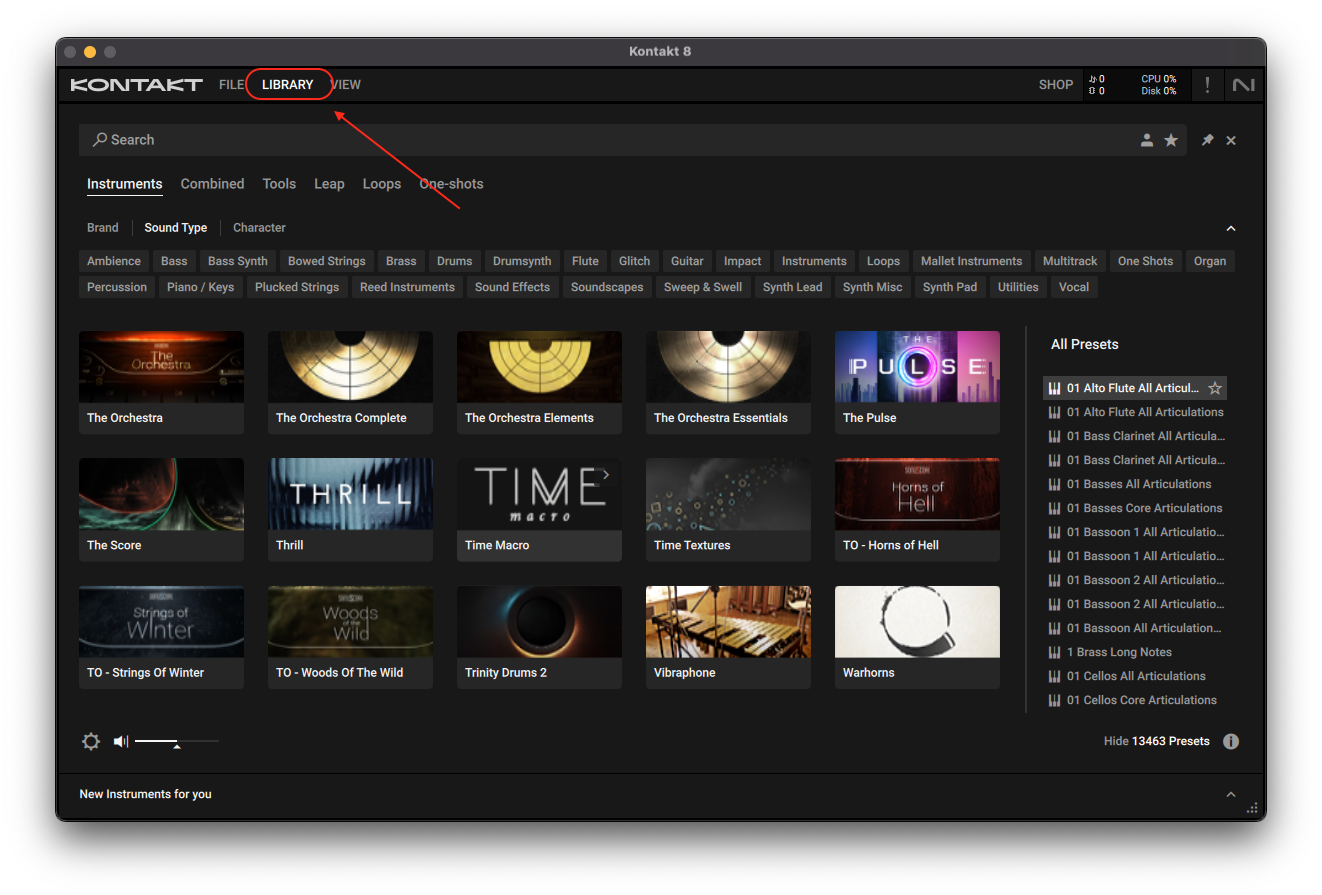
- 3. Click "Library" at the top.
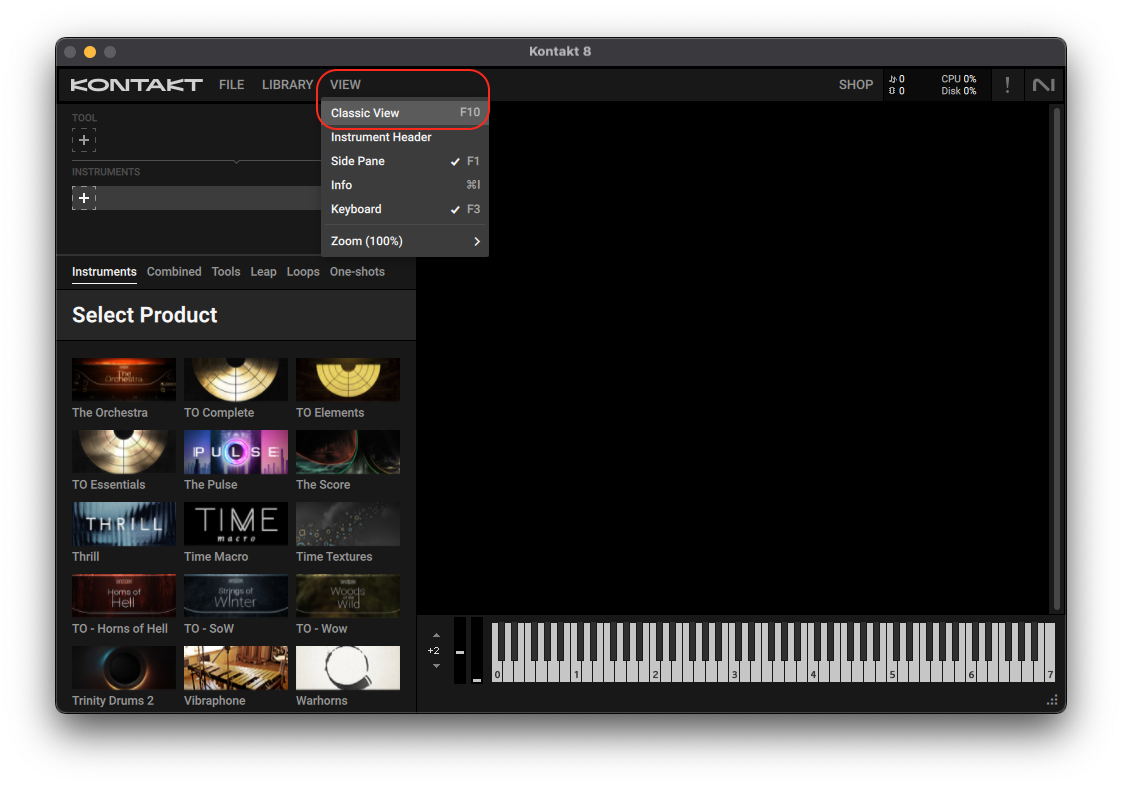
 If the Libraries Browser on the left is not visible, click "View" and select "Classic View".
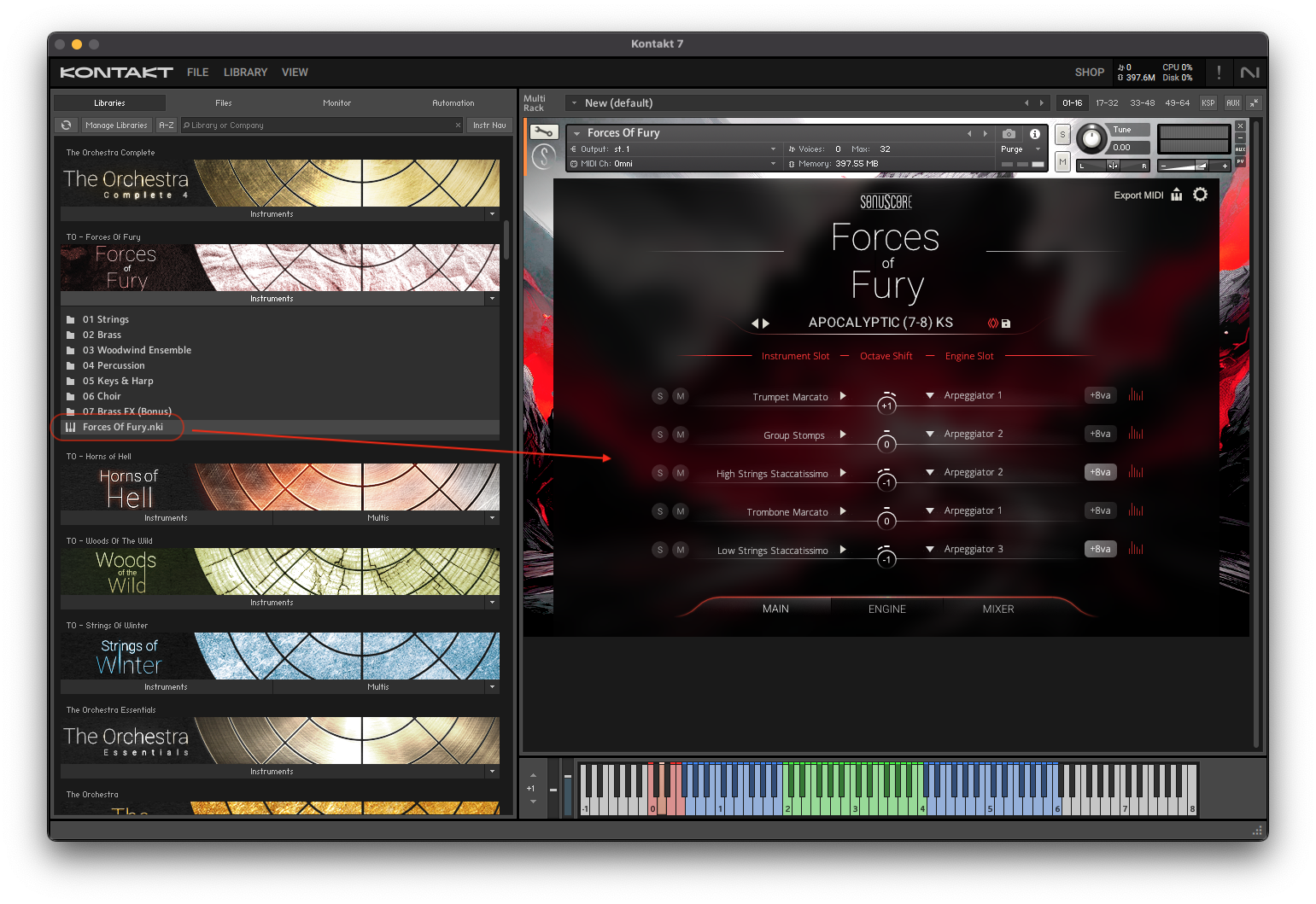
 Locate “Forces Of Fury” in the browser on the left side of the interface.
- 4. Click Instruments to open the product’s content.
- 5. Double-click the Forces Of Fury.nki file, or drag it into the empty area on the right to load the instrument.
INSTRUMENTS
Featured Instruments
Cinematic String Ensembles
The string ensembles in Forces Of Fury were newly recorded to meet the demands of modern trailer and action scoring. Designed for maximum size and intensity, they offer articulations that emphasize tension, drive, and drama - making them ideal for fast-paced cue writing without sacrificing quality.
Expressive Orchestral Percussion
The featured percussion instruments provide powerful, cinematic impact for contemporary trailers, games, and film music. Featuring aggressive ensemble hits and deep low-end elements, this section is ideal for bold and dramatic orchestration.
New Features
New Keyswitch Variations
The most powerful update in THE ORCHESTRA COMPLETE 4 and Forces of Fury: Presets now support up to four keyswitchable variations. That means four distinct musical ideas or cue sections in a single preset. We’ve created over 150 presets using this new system. Most of these are structured with musical sections (intro, main A, main B, outro) triggered via keyswitches - giving you faster, more flexible tools to build evolving scores with minimal effort.
Add 8va Feature
The new Add 8va feature allows you to add an octave above any slot’s material, enriching textures and enhancing sonic width. Especially powerful when used with multiple keyswitches, this feature lets each variation carry its own unique tonal space - ideal for building contrast and momentum within a single cue.
Instrument & Articulation List
Forces Of Fury contains several different KONTAKT instruments (NKIs). In the Instruments folder, you will first be presented with the Ensemble instrument (Forces Of Fury.nki). The subfolders contain the single playable instruments, with both keyswitch and single articulation patches.
- Staccatissimo
- Sustain
- Marcato
- Marcato Flams
- Tremolo
- 16th Doubles
- 16th Figures
- 16th Falls
- FX Shorts
- Sustain FFF Extreme
- Stravinsky Staccato
- Staccatissimo
- Sustain
- Marcato
- Marcato Flams
- 16th Figures
- FX Shorts
- Sustain FFF Extreme
- Stravinsky Staccato
- Staccato
- Sustain
- Marcato
- Flutter Marcato
- Atonal Rips
- Chromatic Rips
- Big Percussion
- Cinematic Hits
- Concert Bass Drums
- Concert Toms
- Metal Drums
- Percussion Ensemble
- Small Percussion
- Snares
- Special Percussion
- Taiko Drums
- Wood Drums
- Timpani
- Tubular Bells
- Xylophone
- Low Piano Accents
- Piano Chain Accents
- Female Choir Staccato (Bonus)
- Male Choir Staccato (Bonus)
- War Horns
Ensemble Engine (Forces Of Fury.nki)
The Ensemble Engine is the core of the library. It was designed to spark inspiration and help you create full, cinematic arrangements by just playing chords and melodies on your keyboard. The engine can load up to ten orchestral instruments, each with its own arpeggiator, envelope, and transpose settings which allows for complex textures and arrangements.
The Forces Of Fury engine works with a delay of 12ms for the arpeggiators/envelopes and 40ms for the Free Mode so that received MIDI information can be processed. To precisely synchronize the audio output of Forces Of Fury with your DAW project, you can use a track delay of -12/-40ms for the corresponding track depending on the used mode/preset.
Please refer to the relevant documentation for the necessary steps to set a track delay in your digital audio workstation.
Main Tab
Positioned on the Main tab, you can find the basic controls to build your ensemble.
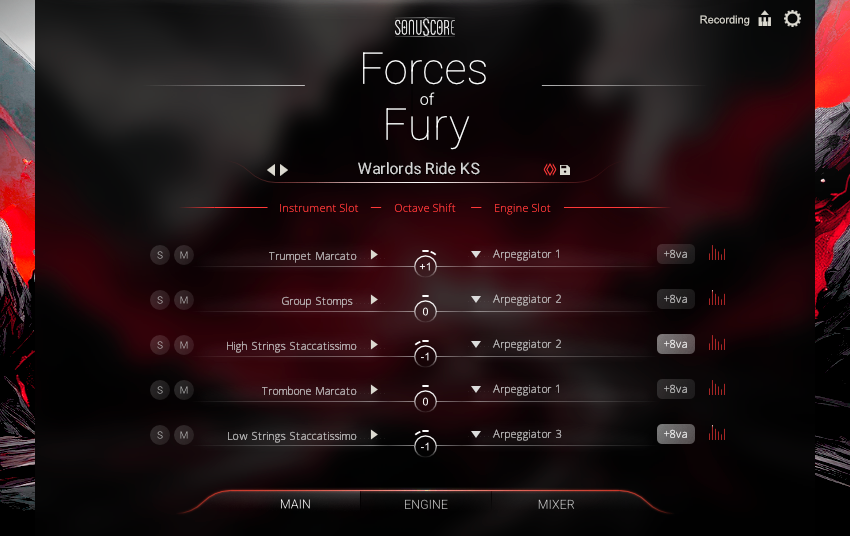
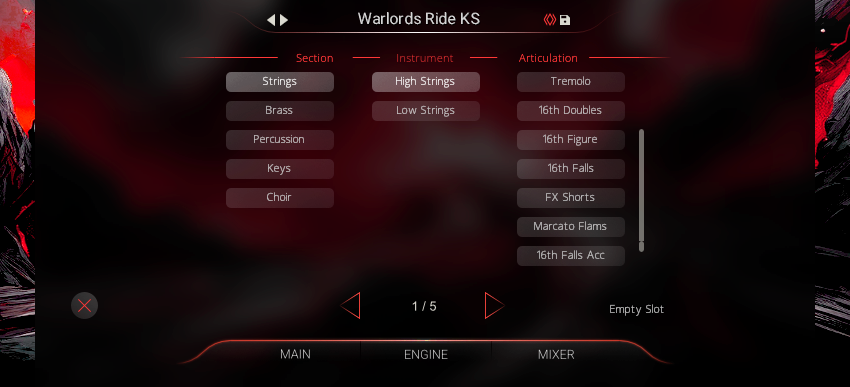
Instrument Browser
By clicking on an instrument slot, a browser will guide you through the selection of an articulation. To quickly load articulations for the different slots, you can navigate through the slots with the arrows on the bottom of the browser. You can delete the loaded instrument from the current slot by clicking on the “empty slot” button on the bottom right. To exit the browser, click on the X on the bottom left, or double click on your selected articulation.
Octave Shift

Next to the instrument slot, there is the octave shift control. By clicking and dragging up or down you can transpose the instrument in the slot one or multiple octaves up or down. This is useful to create playable octave doublings.
Engine Slot
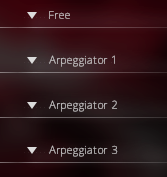
Every instrument can be assigned to one of five different engine modules (Arpeggiator 1-3, Envelope 1/2). By default, the Free Mode is selected, which means the instrument can be played live on your keyboard using modwheel or velocity to control dynamics.
If a module is assigned to Arpeggiator or Envelope, rhythm and dynamics are dependent on the respective module settings.
Arpeggiator 1-3 can be assigned to short articulations (Staccato, Marcato, Pizzicato), while Envelope 1 and 2 can be assigned to sustained articulations (Sustain, Tremolo). An icon on the right indicates if an arpeggiator or envelope is assigned. This icon will light up and move, when the module is active and notes are triggered. For detailed description of the modules see The Engine Tab.
Note Selection
For the Free Mode, you can additionally use the Note Selection which allows you to design your own orchestrations. An icon on the right will indicate the note assignment for the respective slot.
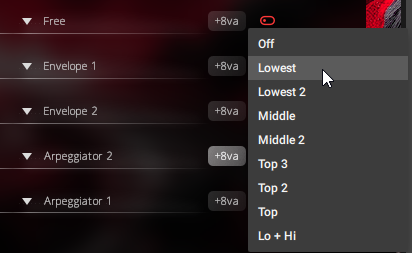
Add 8va
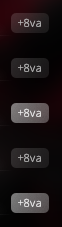
Use the +8va buttons to add an additional voice one octave above the currently played notes in the corresponding slot.
Playable Ranges
Since the individual range of each instrument is modeled after the natural playing range of the captured articulations, the playable range on the keyboard can change between presets. The playable range is highlighted in blue on both KONTAKT’s on-screen keyboard and the KOMPLETE KONTROL hardware. Animated Orchestra Presets are optimized to sound best in the two octaves around middle C, which are marked green on the on-screen keyboard.

Key Switches
With Forces of Fury you now have the option to create variants of your presets and select them via the keyswitches from C0-F0. We designed the new presets in Forces of Fury with four parts of a track in mind: Intro (C0), Main A (D0), Main B (E0), Outro (F0). You change fluently between them when playing.

Export MIDI Function
The Export MIDI feature lets you drag and drop your performance as MIDI data directly into your DAW, with all instruments separated by MIDI channel. You’ll find the Export MIDI icon in the upper right corner of the Main tab.
To use this feature, load a preset that you like, start playback in your DAW and record a performance. The engine automatically records all generated MIDI data in the background, even if you’re not actively recording to a MIDI track in the DAW.
Once your performance has been played, simply click drag the Export MIDI icon into your DAW to create individual MIDI tracks based on the preset’s internal routing.
The MIDI cache is reset as soon as your DAW playback stops and Forces Of Fury is triggered again. This means any previously recorded data will be lost and replaced with new input.
To avoid this, you can record your performance onto a MIDI track in your DAW, make any desired edits, then play back the section to update the MIDI cache in Forces Of Fury. Once updated, you can safely drag and drop the MIDI from the Export icon into your DAW.
If your selected preset uses five instruments, the exported MIDI file will create five separate tracks—one for each instrument group. These can be used to layer different single instruments of Forces Of Fury or with other libraries.
Preset Browser
Above the instrument slots you will find the enhanced preset strip with extensive controls for changing, loading and saving presets. The arrow buttons to the left of the strip allow for quickly skipping through the filtered preset selection. To the right you will find a star icon for marking your favorite presets as well as the preset save control providing easy access to the user preset functionality of Forces of Fury that lets you save, delete and add or edit tags of newly created presets. By clicking on the title of the currently selected preset, you will enter the preset browser.

The Preset Browser includes a wide range of tags to help you filter presets by characteristics and keywords, as well as an option to scroll through the filtered selection.
To simplify the search the tags are organized into different categories:
- LIBRARY: These tags can be used to search for presets in the context of the various libraries included in Forces of Fury. In addition, your presets are stored under the User Presets tag. This category can be used to additively filter for multiple tags.
-
CATEGORY: In general, all presets in Forces of Fury are created with three main
categories in mind, applicable in different compositional scenarios. Here you can switch
between the following three types:
- Orchestral Voicings: You can now create detailed orchestral voicings from the existing presets by assigning individual functions to all 5 slots in Free Mode. For example, the basses only get the "lowest" tone of a played chord. This makes the played chords sound much finer and more transparent. The instruments are exposed tonally like by a good orchestrator.
- Orchestral Rhythms: Basic rhythmical patterns in separate or mixed orchestral sections.
- Animated Orchestra: These are the most complex presets available, making use of the engine modules to create colorful arrangements and interlocking patterns.
- INSTRUMENT: The tags in the Instrument category can be used to search for presets with a prominent portion of specific instrument groups such as woods or percussion.
- METER: Except for the Ensemble Voicings, each preset has a time signature assigned to it, which can be filtered with the tags located in this category. Note: Only one time signature can be selected simultaneously.
- FEEL: The Feel category allows for searching presets with eighth, sixteenth or triplet focus.
- CHARACTER: In order to quickly find suitable Animated Ensemble or Ensemble Rhythms presets for your score, you can narrow down your search further in this category using various types of characteristics. You can choose from nine selected attributes, ranging all the way from »Mysterious« to »Action«.
The lower section of the Preset Browser consists of a number of other controls that can help facilitate your search process:

Using the Undo and Redo arrows on the left, you can jump back and forth in your tag selection history avoiding the risk of messing up the filtered preset selection with an accidental click. The Clear button will reset your tag selection allowing you to start over. The Favorites button lets you filter by your custom preset list. You can add presets to this list by marking your favorite ones with the star icon next to each preset. To exit the preset browser, click on the X on the bottom left, or double click on your selected preset.
User Presets
Forces of Fury has a simple solution to save, organize and share user presets for the Ensemble Engine.
A User Preset can be saved or edited from the Main Page as well as from the Preset Menu. On both pages this is achieved by clicking on the file icon next to the star and then using the »Save As New« option. This opens the Preset Save dialog, which provides you with the option to make your own tag selection for easier retrieval of the preset in the browser later on.
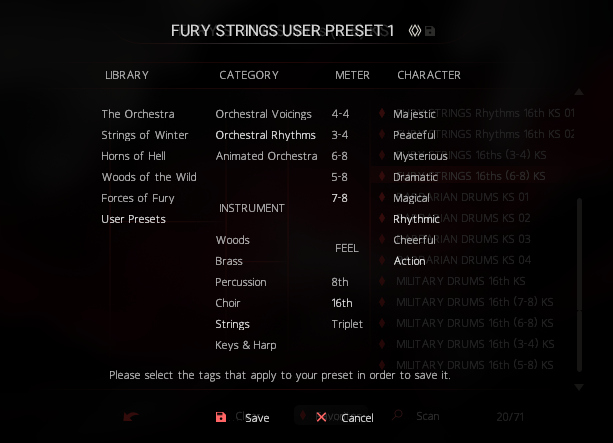
The saving process can then be completed by pressing the Save button. Once you have selected a User Preset in the Browser, you can of course still modify the Tags or Engine settings. Simply select the menu items »Edit Tags« or »Save«. To free up space in the browser, you can also delete your own presets using the »Delete« menu item.
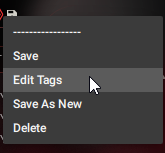
The individual User Presets are saved as single *.nka files into the Data folder under the installation path you chose in Native Access. Since each preset is accessible as a single file, it is easy to transfer and share them between multiple systems.
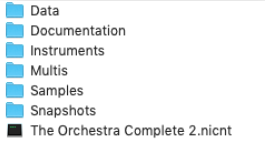
If you want to transfer presets between systems, import User Presets from older versions of the library or share your favorite presets with other users, simply copy the *.nka files of your choosing into the instruments Data folder on the other system.
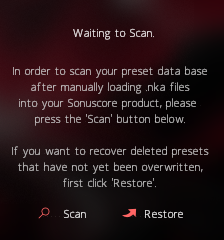
Forces of Fury supports the import of presets via the Scan button in the preset menu. To do this, it is important that the Ensemble Instrument is freshly opened after *.nka files are placed in the Data folder, otherwise Kontakt may not be able to recognize all files.
Engine Tab
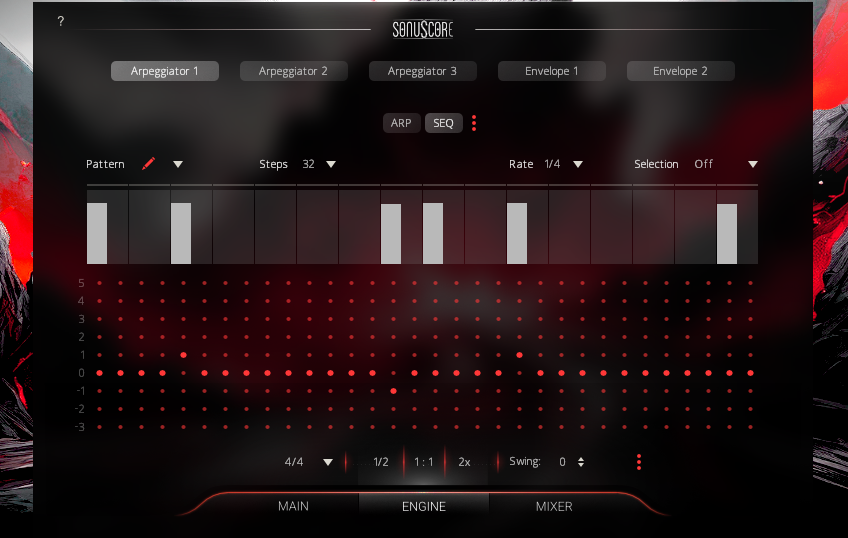
On the Engine tab you can adjust the individual controls of the different modules. There are two different kinds of modules. Short notes can be arranged with the arpeggiators, while sustained notes can be shaped with the dynamic envelopes. The controls and possibilities of the three arpeggiators are identical, the same is true for the two envelopes.
Engine Controls
There are three engine options in the lower area of the Engine tab:

- Time Signature: Selects the time signature of the pattern. The selected time signature will affect the reset function, and also the arpeggiator resolution.
- Speed: Below the controls of each module there is the speed control, providing you with the option double or cut in half the speed of all modules at once. This is especially useful, if the host tempo is very fast or slow.
- Swing: Gradually add a swing feeling to the arpeggiator pattern. (Please note that “Swing” is deactivated for envelopes as they don’t contain any rhythm).
- KS Copy Function: Click the three dots to open the key switch copy menu. Copy the currently selected key switch into the buffer. Change the key switch and paste the buffered content into the new selected key switch. Use this function to quickly create variations of your preset for the different available key switches.
The engine tab initially opens the first arpeggiator.
Arpeggiator Module
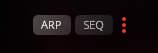
The arpeggiator module consists of two main elements, the Arpeggiator (ARP) itself and the Sequence Customizer (SEQ). While the Arpeggiator helps arranging the dynamic of each step in a recurring rhythmi- cal sequence, the Sequence Customizer lets you choose the respective pitch for every note. With the three dots you can also copy and paste different settings to other arpeggiators or customizers within the engine.
Please note, that you can only copy the settings to the module type (arpeggiator to arpeggiator and customizer to customizer). Switch between ARP and SEQ at the top of the Arpeggiator, to open the Arpeggiator (ARP) or Sequence Customizer (SEQ) submenu.
Further down, there are also some general controls for both Arpeggiator and Sequence Customizer.
Arpeggiator Module Controls

- Pattern: Determines the order, in which the played notes will be arpeggiated. All (Chord) will trigger all played notes in the respective rhythm.
- Steps: Adjusts the amount of steps within the selected time signature.
- Rate: Sets the note length for a single step of the Arpeggiator.
- Selection: Selects whether or not all played notes should be heard in this particular module. The different options allow to only play the lowest, highest or middle notes of a played chord. This can be used to prevent a muddy bass section and orchestrate chords carefully with multiple instruments.
Triplet Rhythms
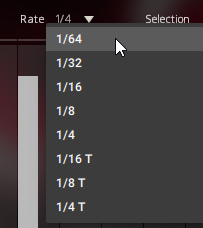
In the arpeggiator modules, it is possible to select three different kinds of triplets as the arpeggiator-rate. If a triplet-rate is selected, the rhythm stepper will adjust the number of steps accordingly. This way, the rhythm stepper will always cover an amount of steps that makes sense within the selected time signature.
Arpeggiator (ARP)
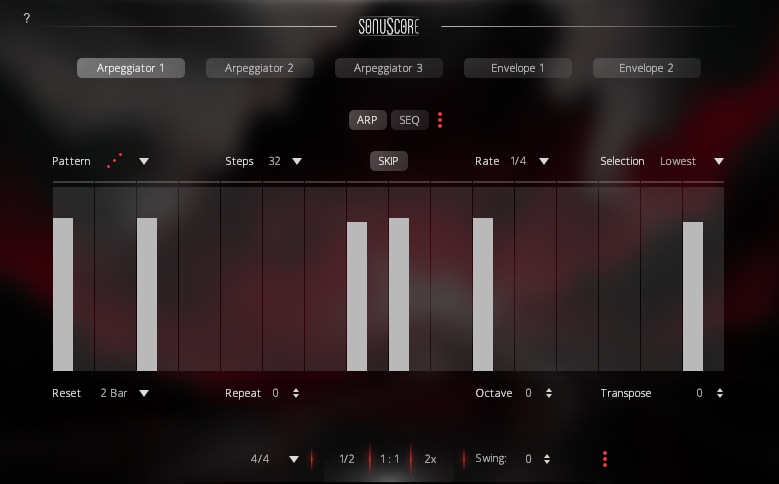
Create your own rhythm in the Arpeggiator. Click to set single step values. Click and drag to draw multiple step va- lues. Right-click and drag to draw a straight line. Use the modulation wheel to control the dynamic of the rhythm.
There are also some ARP-specific controls:
- Reset: If selected, the arpeggio will repeat its pattern after one measure of the selected time signature. The 2X button lets the pattern repeat after two measures. This prevents a random displacement of the note pattern over time.
- Repeat: Repeats every note one or multiple time before moving on to the next one.
- Octave: Repeats the played notes after the first turn one or two octaves above or below.
- Transpose: Transposes the whole pattern one or multiple semitones up or down.
- Skip: Press the SKIP button above the Arpeggiator and steps with the value 0 will be skipped and the respective note will sound at the next active step.
Steps with the value 1 will send Note Off instructions triggering the release of the played sample enabling you to shorten longer articulations and create arpeggios with them.
Sequence Customizer (SEQ)
In the Sequence Customizer (SEQ), you can even customize the pitch sequence of each step within a rhythmic sequence via clicking on the respective point within the matrix:
- Rows: Numeric order of the played notes from bottom to top. The lowest note you play has the value 0, the second lowest note has the value 1 and so on. If you play for example C-Major, the pitch distribution within the Sequence Customizer would be like that:
0 = C1, 1 = E1, 2 = G1, 3 = C2, 4 = E2, 5 = G2, -1 = G0, -2 = E0, -3 = C0 - Columns: Display of the steps and their velocities. This allows you to precisely customize the sequences of notes within the played material and thus pre-design even more realistic passages.
Envelope Module
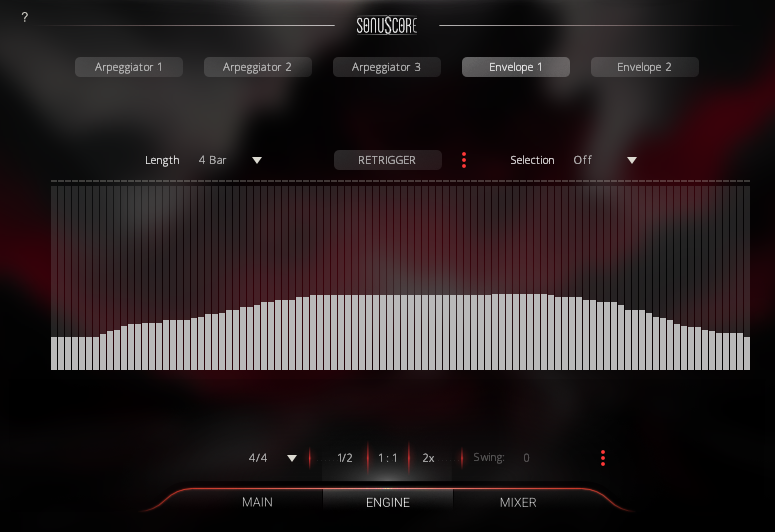
The Envelope allows you to set a recurring dynamic shape to sustained notes. The centerpiece is the envelope shape, which can be drawn freely by left-clicking and dragging the mouse. By right-clicking and dragging the mouse you can draw a straight line.
Envelope Module Controls
A number of additional controls allow you to adjust the envelope to suit your needs:
- Length: Determines the duration in bars over which the drawn envelope will span.
- Retrigger On/Off: If turned on, the sustained note will be triggered again at the beginning of each turn. If turned off, the note will continue in a constant loop.
- Selection: Selects whether or not all played notes should be heard in this particular module. The different options allow to only play the lowest, highest or middle notes of a played chord. This can be used to prevent a muddy bass section and orchestrate chords carefully with multiple instruments.
With the three dots you can also copy and paste different settings to other envelopes within the engine.
As with the Arpeggiator, Note Off instructions can now be activated in the Envelope triggering the release of the current sample. This can be achieved by setting one of the table steps to the value 0.
Mixer Tab
In the Mixer tab you can adjust the balance and sound of the different slots and apply master effects.
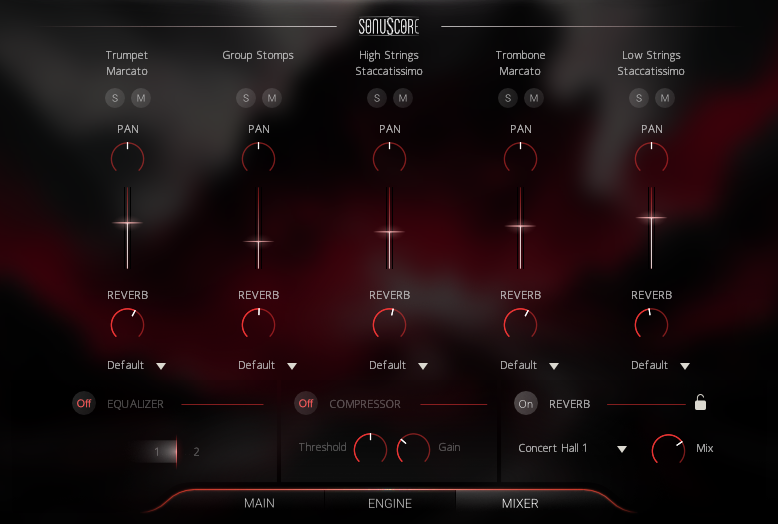
Channel Strip
The name of the loaded instrument is displayed on the very top of every small channel strip.
- Solo/Mute: Listen to a single slot alone, or mute a single slot temporarily.
- Pan: Moves the instrument from a slot further to the left/right in the stereo field. Note: All instruments were already recorded in their traditional position, so there is no additional panning necessary for traditional positioning.
- Fader: Turns the volume of the slot up or down. Ctrl+Click/Cmd+Click to reset the value to 0dB.
- Reverb: Sets the send-level to the included convolution reverb. With this control, the amount of reverb on each instrument can be adjusted. If set to -infdB, the master reverb will not affect this slot at all. This way depth and distances in Forces of Fury can be adjusted.
Output Routing
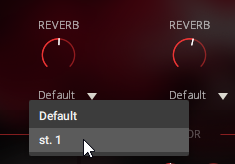
On the Mixer page, you can use the dropdown menu below the channel strip to assign each instrument slot to a specific KONTAKT output. If no outputs are displayed, you can create, rename and assign new outputs in the Outputs menu of KONTAKT (F2). They will be available immediately in the dropdown menu of our mixer page. Consult the documentation of KONTAKT and your DAW to learn how to implement multitimbral instruments within your particular audio software.
Even though the dry signals will be split to the separate outputs, the send reverb will remain on the default channel, as splitting the reverb would be very taxing on your CPU. For best results, we suggest to use this feature with the internal convolution reverb turned off, and add a master reverb in the DAW.
Master Effects

- Equalizer: Choose between two master EQ settings that were prepared specifically for this instrument.
- Compressor: Adjust the dynamics of the instrument by setting the threshold of the compressor and adjust the makeup gain to the right.
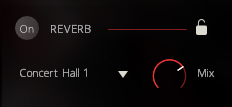
- Reverb: This is the master convolution reverb with ten high quality impulse responses from different legendary effect processors. You can choose an impulse response in the menu to the left and adjust the send return level of the reverb with the mix-control.
Reverb Lock
Next to the reverb toggle switch you can find the Reverb Lock. If activated the reverb settings will stay the same when you browse through different presets.
Settings Page
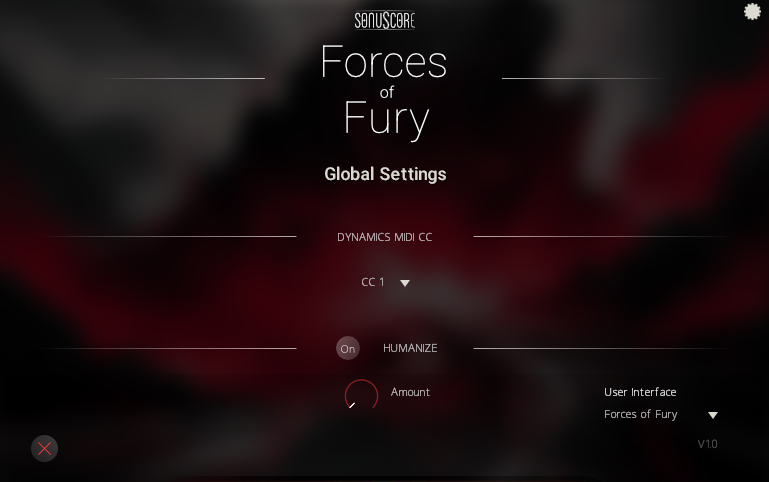
On the top right of the Main page, there is a little gear icon that leads to the settings page, that provides options for additional customization.
Dynamic Controller
In this menu, you can select one of three standard MIDI controllers (CC1, CC2, or CC11) to control the overall dynamics of the engine. This controller influences both the scaling of velocity and envelope parameters of the engine modules, as well as the real-time shaping of sustained articulations that are not otherwise assigned.
By default, this control is mapped to the modulation wheel (CC1).
Humanize
By turning on the humanization and turning up the humanization control, the engine will gradually add imperfections to rhythm and dynamics of the engine modules.
User Interface
This option allows changing the design theme of the user fnterface in the Ensemble instrument as well as in the Single Instruments. You can choose between the looks of all included libraries of the THE ORCHESTRA family.
Single Instruments
Keyswitch Instruments
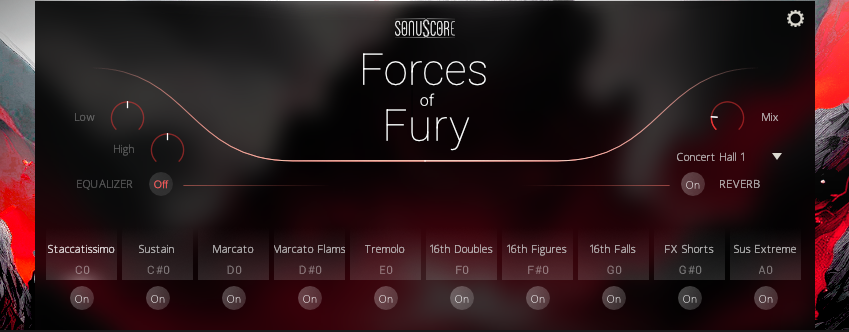
The keyswitch instruments are labeled »All Articulations«, »Core Articulations« or »Extended Articulations« in the single instruments folders. In these instruments, a selection or all articulations can be played in one instance using keyswitches.
Articulation Selection
On the lower end of the interface all available articulations are displayed. You can activate an articulation by clicking on it, or by playing the note that is shown above it in the lowest octave (C0-B0).
Multi Keyswitches
To quickly layer multiple articulations, two or more keyswitches can be triggered simultaneously by overlapping the notes or pressing the keys at the same time.
Sample Purging
With the on/off switch below you can deactivate single articulations from the instrument. These samples will no longer be loaded into RAM.
Reverb
Turn on/off the convolution reverb with ten high quality impulse responses from different legendary effect processors. You can choose an impulse response in the menu below and adjust the amount of wet signal with the mix-control.
Equalizer
Turn on/off the equalizer. This equalizer has two bands with a frequency and Q-factor chosen specifically for each instrument. Add more warmth and bass with the low-control and bring more brilliance to the sound with the high-control.
Single Articulations
The single articulation patches are the most lightweight instrument versions in Forces of Fury, each containing only one specific playable articulation from a single instrument. See section 6.1 for details on reverb and EQ settings.
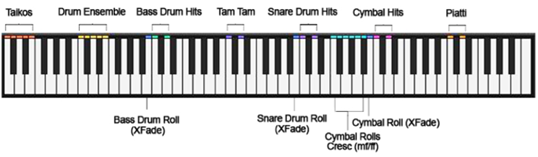
Big Percussion
To keep it simple, all non pitched percussion are included in a single patch. In every octave a different instrument is mapped. If a note is played, the instruments name will be displayed in the lower middle of the user interface. The following graphic shows the mapping of the different instruments.
Multis
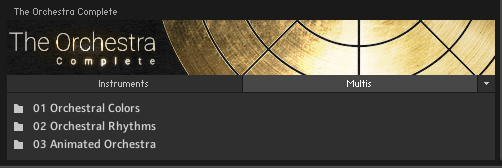
The multis combine different presets and settings in multiple instances of the Ensemble Instrument to create huge-sounding instantly playable instruments. They are sorted into the same categories as the presets from the Ensemble Instrument:
The Orchestral Colors Multis are full orchestral combinations for quick sketching and layering.
Orchestral Rhythms and Animated Orchestra Multis contain rhythms and patterns that will be generated from any played note. Many of them are layered with playable articulations, so melodies can be played on top of the orchestral rhythms.
CREDITS
Product Concept and Design: SONUSCORE: Steffen Brinkmann, Tilman Sillescu, Stefan Kemler, Christian Wirtz, Pierre Langer, Axel Rohrbach
Project Lead: Tilman Sillescu
Session Preparation & Management: Tilman Sillescu
Preset Design: Tilman Sillescu, Simon Schrenk, Nico Dilz
KONTAKT Scripting: Stefan Kemler, Mathias Vatter
Sample Editing: Matthias Meeh, Luka Swoboda, Jonas Schüsselin, Jonas Hausotter
User Interface Design: Jannic Böhme, Stefan Kemler
Artwork: Jannic Böhme, Felix Möbius, Benedikt Huster
Quality Assurance: Tilman Sillescu
Mixing: Peter Fuchs
Marketing: Benedikt Huster, Tobias Kunz, Jannic Böhme, Felix Möbius, Louisa Wolf, Zoé Friedbacher, Russ Hughes
Demo Videos: Tilman Sillescu, Nadja Demmler
Manual: Lukas Ruschitzka, Simon Schrenk
Samples performed by the Budapest Art Orchestra at Studio 22, Budapest